

How to Track Game Prices Across All Platforms
You're probably overpaying for games.
The average gamer spends $500+ per year on games, and a good chunk of that goes to titles that were on sale somewhere else, or dropped in price a week later. The problem isn't finding deals. It's that those deals are scattered across PlayStation Store, Xbox Marketplace, Steam, Nintendo eShop, and dozens of third-party retailers. Nobody has time to check all of them.
The solution? Price tracking tools that do the work for you.
In this guide, you'll learn exactly how to set up price tracking across every platform you play on, which tools work best for each situation, and how to make sure you never miss a deal again.
What Is Game Price Tracking?
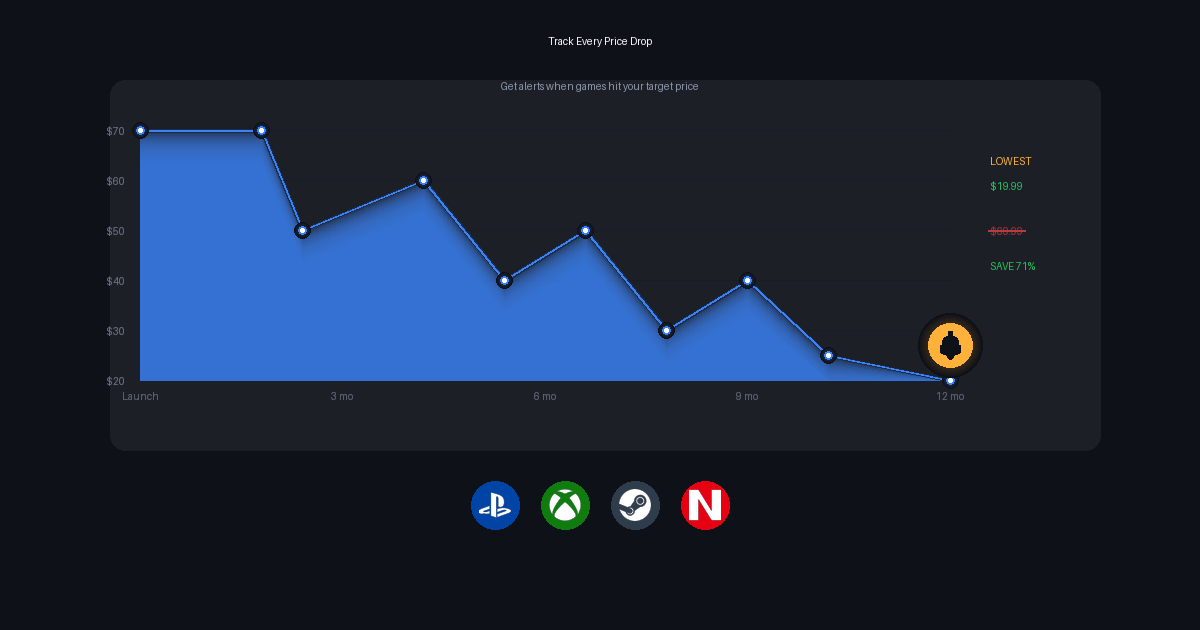
Short answer: Game price tracking monitors the prices of games you want across multiple stores and alerts you when they go on sale or hit a target price you set.
Instead of manually checking the PlayStation Store, Steam, Xbox Marketplace, and Nintendo eShop every day, you add games to a tracking list once. The tool watches prices 24/7 and sends you a notification when something drops.
Why It Matters
- Games go on sale constantly. Steam alone runs 4+ major sales per year, plus daily deals. PlayStation, Xbox, and Nintendo each have their own sale schedules.
- Prices vary by platform. The same game can be $20 on Steam and $40 on PlayStation Store on the same day.
- Sales are short. Most deals last 1-2 weeks. Miss the window, wait months for the next one.
- Subscription services complicate things. Why buy a game if it's about to land on Game Pass or PS+ Extra?
The Best Price Tracking Tools (By Platform)
Not all tools cover all platforms. Here's what works best depending on where you play.
For PC Gamers: IsThereAnyDeal
IsThereAnyDeal is the gold standard for PC game price tracking.
What it does:
- Tracks prices across 30+ PC game stores
- Syncs with your Steam wishlist automatically
- Shows historical price charts so you know if a deal is actually good
- Covers Steam, GOG, Epic, Humble, Green Man Gaming, and more
How to set it up:
- Go to IsThereAnyDeal.com
- Sign in with your Steam account (or create an account with email)
- Import your Steam wishlist under "Settings > Import"
- Set price thresholds for alerts under "Waitlist"
- Choose notification preferences (email, browser, or both)
Best for: PC-only gamers who buy from multiple storefronts.
Limitations: No console coverage. Won't track PlayStation, Xbox, or Nintendo prices.
For Multi-Platform Coverage: GG.deals
GG.deals covers PC and consoles in one interface.
What it does:
- Tracks PC games across official stores and key resellers
- Covers PlayStation Store, Xbox Marketplace, and Nintendo eShop
- Flags games available on subscription services (Game Pass, PS+)
- Shows price history and all-time low prices
How to set it up:
- Go to GG.deals
- Create a free account
- Search for games and click "Follow" or "Notify"
- Set your target price for alerts
- Check the "Subscriptions" tab to see if a game is already on a service you pay for
Best for: Gamers who play on PC and at least one console.
Limitations: Doesn't sync wishlists from console platforms automatically. You'll need to add games manually.
For Nintendo Switch: Deku Deals
Deku Deals specializes in Nintendo but also covers PlayStation, Xbox, and Steam.
What it does:
- Tracks Nintendo eShop prices across multiple regions
- Shows physical game prices from retailers (Amazon, Best Buy, Walmart)
- Tracks DLC and season pass prices
- Highlights games leaving subscription services
How to set it up:
- Go to DekuDeals.com
- Create an account or sign in with Google/Apple
- Search for games and add them to your wishlist
- Set price alerts with your target price
- Enable email notifications in account settings
Best for: Nintendo Switch owners, especially those who buy physical.
Limitations: While it covers other platforms, the interface is optimized for Nintendo content.
For Quick PC Deal Scanning: CheapShark
CheapShark is a straightforward deal aggregator for PC games.
What it does:
- Searches across 13+ PC game stores
- Simple interface focused on current deals
- Basic price alerts via email
- API available for developers
How to set it up:
- Go to CheapShark.com
- Search for a game
- Click "Set Alert" and enter your email
- Choose your target price
- Receive an email when it drops
Best for: Casual PC deal hunters who want something simple.
Limitations: PC only. No wishlist sync. Limited historical data.
The Problem With Using Multiple Tools
Here's the reality: if you game on more than one platform, you need multiple price tracking tools. And none of them talk to each other.
- Your Steam wishlist syncs to IsThereAnyDeal.
- Your PlayStation wishlist lives on GG.deals (if you manually add it).
- Your Nintendo wishlist is on Deku Deals.
- None of them know what you already own.
So you end up with:
- Games tracked in 3 different places
- No unified view of your gaming library
- No way to see if a wishlist game just landed on Game Pass or PS+
- Occasionally buying games you already own on another platform (yes, this happens more than people admit)
How Vaulted.Games Solves This
Vaulted.Games takes a different approach. Instead of just tracking prices, it tracks your entire gaming life across every platform.
What Makes It Different
| Feature | Traditional Price Trackers | Vaulted.Games |
|---|---|---|
| Price tracking | ✅ Yes | ✅ Yes |
| Cross-platform wishlist | ❌ Manual entry | ✅ Synced (PS/Xbox/Steam) + manual |
| Library tracking | ❌ No | ✅ Know what you own everywhere |
| Subscription monitoring | ⚠️ Basic | ✅ Alerts when wishlist games hit Game Pass/PS+ |
| "Leaving soon" alerts | ❌ No | ✅ Don't miss games before they're gone |
| Family sharing | ❌ No | ✅ Track family libraries together |
How to Track Prices With Vaulted.Games
- Create an account at vaulted.games
- Link your platforms (PlayStation, Xbox, Steam)
- Import your wishlists automatically from linked platforms
- Set price alerts with your target price for any game
- Enable subscription tracking to get notified when wishlist games land on services you already pay for
That's it. One dashboard. Every platform. No more juggling multiple tools.
A note on Nintendo: Unlike PlayStation, Xbox, and Steam, Nintendo doesn't offer a public API for syncing your library or wishlist. You can still track Nintendo games and eShop prices in Vaulted.Games, but you'll need to add them manually rather than importing automatically. This is a Nintendo limitation, not something any third-party service can work around.
The Subscription Service Advantage
This is where traditional price trackers fall short.
Say you've been waiting for a game to go on sale. You've got a $20 price alert set. But you don't realize it just got added to Game Pass, which you already pay for. You either:
- Buy it anyway (wasted money)
- Miss out entirely (wasted opportunity)
Vaulted.Games monitors Game Pass, PS+ Extra/Premium, EA Play, and Ubisoft+ catalogs. When a game from your wishlist appears on a service you subscribe to, you get notified. When it's about to leave, you get a heads up so you can finish it in time.
Quick Comparison: Which Tool Should You Use?
| Your Situation | Best Tool |
|---|---|
| PC gamer, Steam only | IsThereAnyDeal |
| PC gamer, multiple stores | GG.deals or IsThereAnyDeal |
| Nintendo Switch primary | Deku Deals |
| Console + PC, multiple platforms | GG.deals (basic) or Vaulted.Games (unified) |
| Heavy subscription user (Game Pass/PS+) | Vaulted.Games |
| Family with shared libraries | Vaulted.Games |
Pro Tips for Price Tracking
1. Know the Historical Low
Don't just set alerts for "any sale." Check the historical low price first. Most tools show this. If a game has hit $10 before, don't pay $30 just because it's "50% off."
2. Understand Sale Cycles
- Steam: Major sales in Spring, Summer, Fall (Halloween), and Winter. Daily deals year-round.
- PlayStation: Big sales around Black Friday, Days of Play (June), and holiday seasons.
- Xbox: Publisher sales throughout the year, major events around E3/Xbox Showcase timing.
- Nintendo: Less predictable. First-party titles rarely drop below $40.
3. Check Subscription Services First
Before buying anything, check if it's on Game Pass, PS+ Extra, or another service you subscribe to. This should be automatic (which is why tools like Vaulted.Games exist), but if you're using basic trackers, make it a habit.
4. Set Realistic Price Targets
New AAA games rarely drop below $40 in the first year. Indies are more aggressive. Be patient, but don't set a $5 alert on a game that's never going below $15.
5. Enable Notifications
Price tracking only works if you actually see the alerts. Enable email or push notifications. A deal that expires before you check your dashboard is a deal you missed.
FAQ: Game Price Tracking
How do price tracking tools know when games go on sale?
They monitor store APIs and web data continuously, usually every few hours. When a price changes, they update their database and trigger alerts for users tracking that game.
Are game key reseller prices safe to track?
Some tools (like GG.deals) include authorized key resellers. Gray market sites can have risks including revoked keys. Stick to stores marked as "official" or "authorized" if you're unsure.
Can I track physical game prices?
Deku Deals tracks physical prices from major retailers for Nintendo games. For other platforms, deal-finding sites like r/GameDeals or SlickDeals are your best bet.
How far in advance do sales get announced?
Major platform sales (Steam Summer Sale, PlayStation Days of Play) are usually announced 1-2 weeks ahead. Flash sales and publisher sales often have little or no warning.
Is game price tracking free?
Most tools covered in this guide offer free tiers that cover basic price alerts. Premium features like unlimited wishlists or advanced analytics may require paid subscriptions.
Start Tracking Today
Here's your action plan:
- Pick your primary tool based on where you play most.
- Import or add your wishlist so you're tracking the games you actually want.
- Set realistic price targets based on historical lows.
- Enable notifications so you don't miss deals.
- Check subscription services before buying anything.
If you play across multiple platforms, consider Vaulted.Games to consolidate everything into one view. No more logging into four different trackers. No more accidentally buying games you already own or could play for free on a subscription.
Your wallet will thank you.